
Forget basic chatbots. OpenClaw is a self-hosted AI agent runtime that can automate your email, control smart devices, and work for you 24/7. This complete beginner’s tutorial cuts through the complexity, giving you the exact commands and strategies to deploy your own secure, personal AI workforce on Linux.

Why a VPS is the #1 Recommended Setup for Security & Uptime
Running OpenClaw directly on your main computer poses security risks, as the agent has terminal access. The professional solution is a Virtual Private Server (VPS).
A VPS provides a sandboxed environment, protects your personal files, and runs 24/7, even when your laptop is closed. Services like Hostinger offer one-click templates that simplify the entire process.
Think of a VPS as a dedicated, always-on computer in the cloud just for your AI agent. It’s the safest way to grant it the powerful access it needs without risking your own data.
Method 1: The Direct Local Install on Your Linux Machine (CLI)
If you want to run OpenClaw directly on your hardware, follow these precise technical steps. This method is ideal for testing and local automation.
Step-by-Step Command Guide: Install & Configure the Gateway
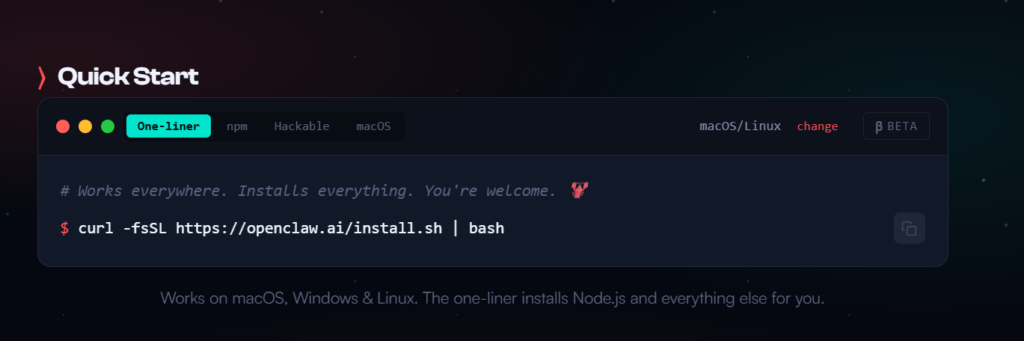
First, ensure you have Node.js version 22 or higher. Then, open your terminal and execute these commands in order:
- Install the Package:
npm install -g openclaw - Launch the Onboarding Wizard:
openclaw onboard --install-daemon
The wizard will guide you through critical configuration choices:
- Gateway Type: Choose “local gateway” for this machine.
- Model Provider: Select Anthropic (Claude), OpenAI, or Google and paste your API key.
- Gateway Bind: For local-only access, select “loopback”. For remote access via Tailscale, choose “tail”.

Method 2: The Professional 24/7 VPS Setup (Hostinger Guide)
For a persistent, secure assistant, a VPS is non-negotiable. Here’s the exact technical deployment path.
VPS Server Setup: Choose KVM2 and Enable Docker
When provisioning your server, select a KVM2 plan with a Linux OS marked LTS (Long-Term Support). During setup, you must enable the Docker manager—this is crucial for containerization and security.
Deploy OpenClaw from the Docker Catalog in 3 Clicks
In your VPS dashboard, navigate to the Docker Manager and search the catalog for “OpenClaw”.
- Click “Deploy”.
- Copy the auto-generated Gateway Token immediately—this is your system password.
- Paste your Anthropic or OpenAI API key into the configuration field.
- Click deploy. Once status is “running”, click the provided port link (default: 18789) to access the web dashboard.
This method automates the complex Docker setup, giving you a production-ready AI agent in minutes. The gateway token is your master key—store it securely.
Connect to Your Phone: Telegram & WhatsApp Setup Commands
Control your AI assistant from anywhere by linking messaging channels. This is where OpenClaw becomes a true personal assistant.
Telegram Bot Setup: Get Your API Token from @BotFather
To create your bot, message @BotFather on Telegram and send the command /newbot. Follow the prompts to name your bot and receive an HTTP API Token. Then, in your OpenClaw chat, type: “Let’s set up Telegram” and paste the token when prompted.
WhatsApp Linking: Scan the QR Code from Your Terminal
In your OpenClaw terminal or dashboard, run the command:
openclaw channels login
A QR code will appear. Scan it using the “Linked Devices” feature in your WhatsApp mobile app to link your account instantly.
Critical Security Step: Whitelist your phone number in the `openclaw.json` config under `channels.whatsapp.allowFrom` to prevent unauthorized access.

Essential Maintenance & Security Audit Commands for Linux
Keep your OpenClaw installation healthy and secure with these must-know terminal commands.
- Check Status:
openclaw status– Verifies the gateway service is running. - Health Diagnostics:
openclaw doctor– Identifies problems. Useopenclaw doctor fixto auto-repair. - Deep Security Scan:
openclaw security-audit --deep– Scans for vulnerabilities like excessive file permissions. - Enable Sandboxing: Set
agents.defaults.sandbox.mode: "non-main"in your config to run agents in isolated Docker containers. - Update Software:
openclaw update --channel stable– Switches to the latest stable release.
Running a monthly `security-audit` and enabling sandbox mode are the two most effective actions you can take to protect your system from unintended agent actions.
You now have the complete technical blueprint. Start with the VPS method for a secure, always-on assistant, use powerful models like Claude 3.5 Sonnet for better safety, and never skip the security whitelisting for your messaging apps. Your autonomous AI journey begins with a single command.